Sometimes it may be hard to notice what is being selected on a touchscreen due to the size of the screen vs the size of the buttons. So this article will go over enabling some visual clues on the screen, so whatever is tapped gets highlighted.
Android
- Enable Developer Options:
- Open the Settings app on your Android device.
- Scroll down to About phone and tap on it.
- Tap on Software Information.
- Find the Build number and tap on it repeatedly (usually 7-10 times).
- You'll see a message indicating that you've enabled Developer mode.
- You may need to enter your PIN or password to confirm.
- Return to the Settings menu. A new Developer Options section will appear.
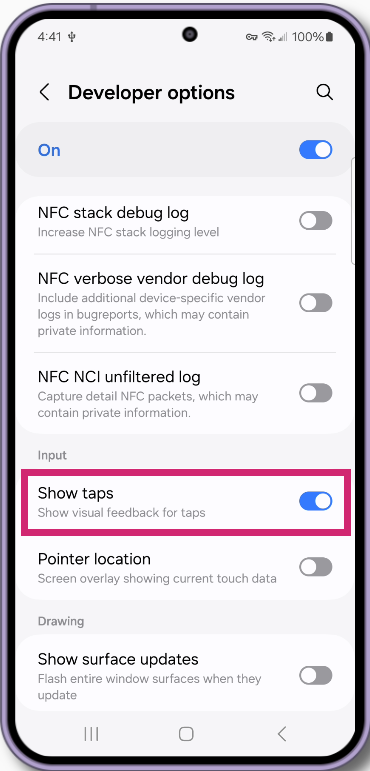
2. Enable Show Taps/Touches:
- Open Developer Options
- Scroll down to the Input or Input methods section
- Look for Show Taps or Show Touches
- Enable this option.
|
|
Windows
- Do a Windows search for "Show visual feedback when you touch the screen"
- Toggle on "Show visual feedback around the touch points when I touch the screen."
- Check on "make visual feedback for touch points darker and larger"

Chris Clemente
Comments