Understanding Leica's GeoCOM Authentication license
In this article, we will explain Leica's GeoCOM authentication process as it affects users of FieldGenius.
What is GeoCOM?
GeoCOM is a type of licensing that allows you to request robotic functions from your robotic total station. GeoCOM has to be enabled using a license before Hexagon solutions such as FieldGenius can fully communicate with a Leica Robotic Total Station. There are a variety of methods for GeoCOM authentication with MicroSurvey Products, depending on the model of robotic total station you are using:
- Method 1: Software provides authentication: FieldGenius on a Windows Tablet or Android controller have geocom authentication built into the software. All you need to do is run FieldGenius on a supported controller and all robotic functions work.
- Method 2: Software provides authentication PLUS a Geocom Authentication license is required on the total station. Currently (April 2019) this method is required only on the TS13 model. In North America, the GeoCOM license is provided free of charge for MicroSurvey users who wish to run current versions of FieldGenius.
Method 1
What Controllers Permit GeoCOM Authentication by the software alone (Method 1)?
Method 1 of Geocom authentication described above works on controllers with Windows 11 or Android.
Confirming in FieldGenius if GeoCOM Robotic is Authenticated by the Software:
NOTE: GeoCOM authentication is required to access robotic functions. You will have no trouble connecting to any Leica robot if your controller isn't authenticated, you just won't be able to search etc.
Confirm GeoCOM authentication by:
- (Important) Power cycle the total station to clear any geocom authentication that be have been caused by another software.
- Launch FieldGenius and connect to the instrument. After a connection is completed, click OK on the level instrument and cancel the setup/backsight dialog until you are at the MapView screen.
- When here, select the "Rotate Instrument" function and enter a value to rotate.
- Verify that the instrument rotates. If it isn't working then either a message will come up telling the user the GeoCOM authentication failed or the instrument will not activate its motors to turn the total station.
Confirming on the Instrument if GeoCOM Robotic is Authenticated by the Software:
You can determine if GeoCOM is authenticated using Method 1 described above by:
- Power cycle the instrument and DO NOT attempt to connect to it using any controller
- To view your instruments license screen (shown below) select "Settings" on the Captivate main menu
- Select "About Leica Captivate"
- Select "Total Station" and use the keyboard down arrow to scroll to the section on licenses.
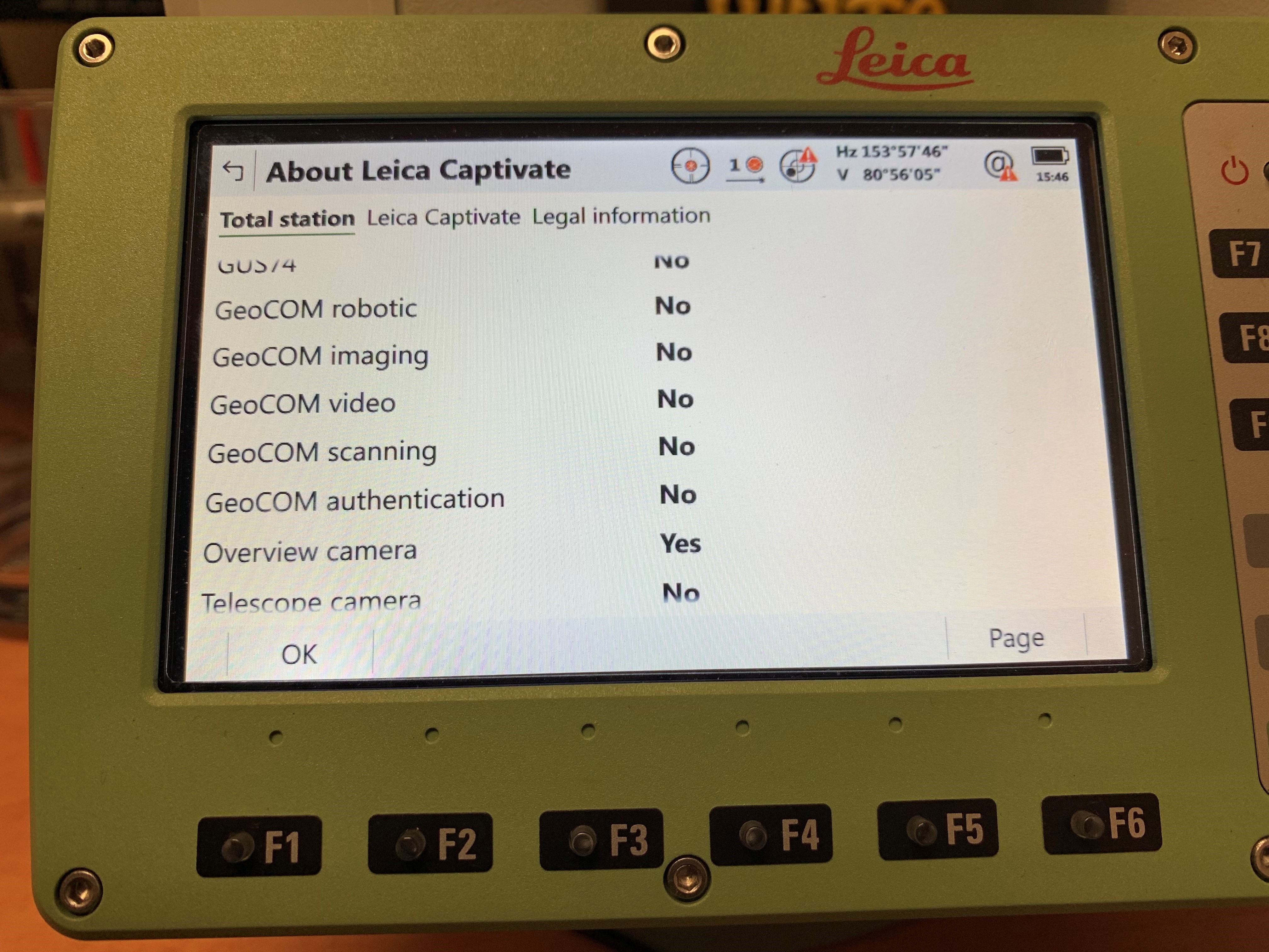
- Geocom Robotic will be shown as "NO," this is the expected state before you connect
- Now connect to the instrument using FieldGenius
- Repeat steps 2 to 4
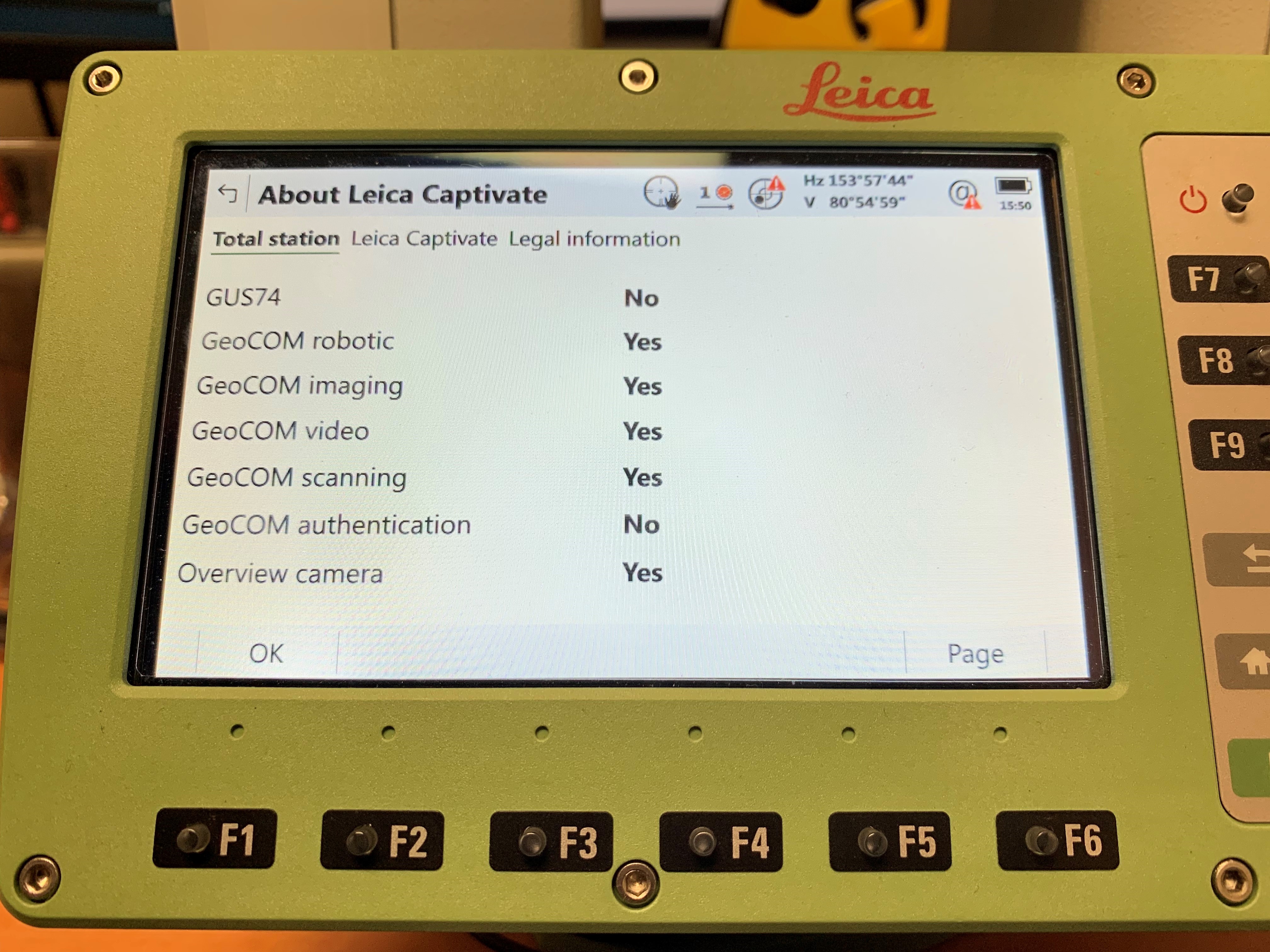
- Geocom Robotic will be shown as "YES," this is the expected state after you connect using a supported controller
 |
 |
| This is what the TS16's default GeoCOM licenses look like before FieldGenius connects. Special Note: This TS16 has imaging, video and scanning functionality, therefore these features also get unlocked with the GeoCOM Robotic license. |
This is what the TS16's GeoCOM licenses look like after FG connects. Special Note: All GeoCOM licenses are set to "YES" except for the one labelled "GeoCOM authentication" after the connection is established. This is only enabled/needed for certain models. See below for more details. |
Method 2:
What Controllers Permit GeoCOM Authentication by the software and a License (Method 2)?
Method 2 of Geocom authentication works with any Windows 11 tablet or Android controller.
Confirming on a TS13 if GeoCOM Robotic is Authenticated by the Software AND a License on the Instrument:
You can determine if GeoCOM is authenticated using Method 3 described above by:
- Power cycle the instrument and DO NOT attempt to connect to it using any controller
- To view your instruments license screen (shown below) select "Settings" on the Captivate main menu
- Select "About Leica Captivate"
- Select "Total Station" and use the keyboard down arrow to scroll to the section on licenses.
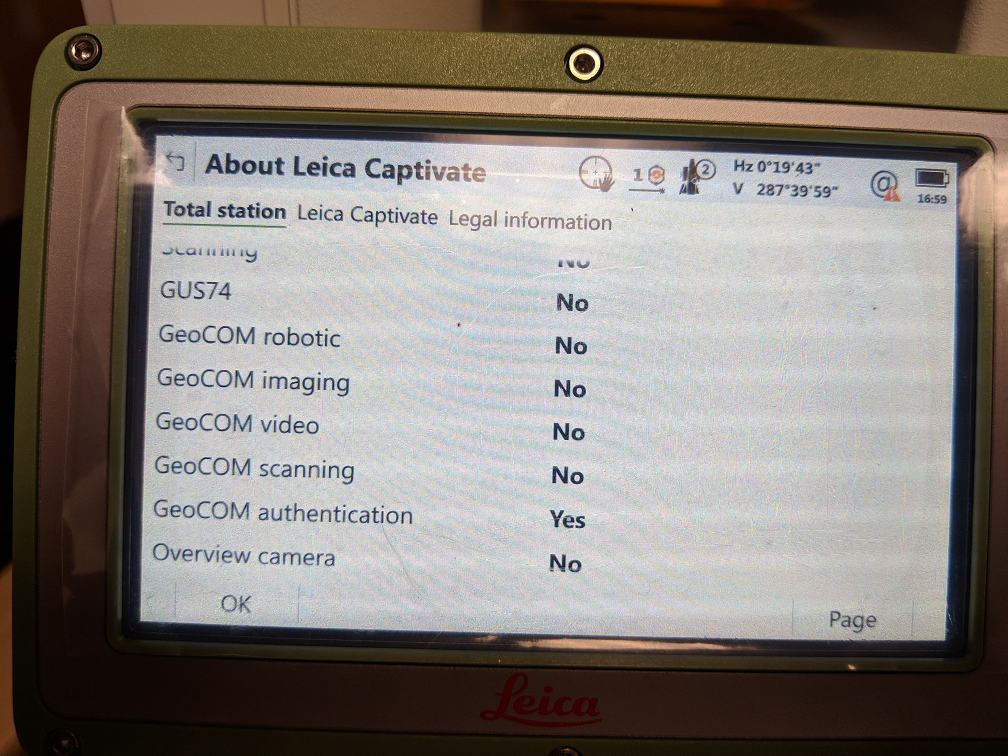
- Geocom Robotic will be shown as "NO," AND Geocom authentication will be shown as "YES"
- Now connect to the instrument using FieldGenius
- Repeat steps 2 to 4
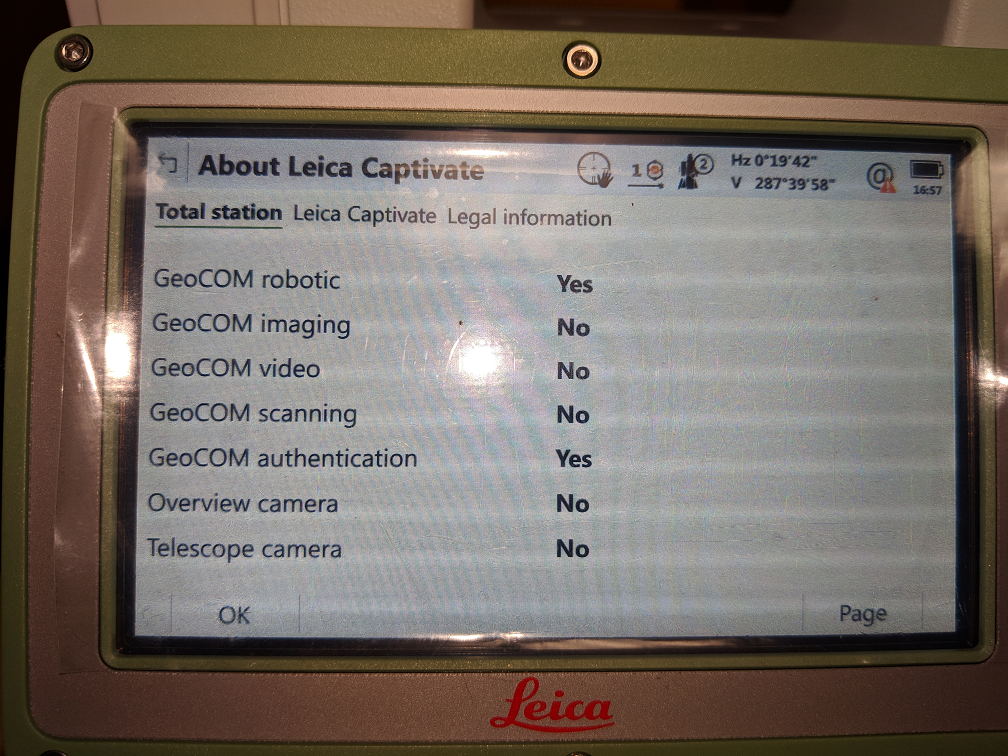
- Geocom Robotic will be shown as "YES"
Currently (July 2019) the TS13 is unique. A "GeoCOM Authentication" license will be required in an addition to the built-in GeoCOM authentication for all non-Captivate software. This license is provided and activated by your dealer. Leica's policy on pricing varies by region, but in the NAFTA region the license will be provided at no charge to owners of current FieldGenius or Evidence Recorder. Refer to the screenshots below for what to expect:
 |
 |
| This is what the TS13 looks like with the GeoCOM authentication before a connection Special Note: Prior to a connection only the "GeoCOM authentication" option is set to YES, After the connection is completed the GeoCOM robotic is now also set to YES. |
This is what the TS13 looks like with the GeoCOM authentication after connection Special Note: This TS13 does not have imaging, scanning or video functionality so therefore these options will not be applicable with this instrument. |
Conclusion:
The question of GeoCOM Authentication can cause some confusion for users who are using MicroSurvey products with existing Leica hardware or buy a new instrument then find they are unable to use the robotic functionality. If this happens, you should confirm that GeoCOM is enabled correctly. The article above should arm you with some diagnostic capabilities, but if in doubt, you or your dealer can contact the MicroSurvey support team via ticket or phone, we are very experienced in these matters.
James Johnston
Comments