Leica's TS13 GeoCOM Authentication license
In this article, we will explain how to confirm if the Leica TS 13 instrument has GeoCOM Authentication.
The TS13 requires a "GeoCOM Authentication" license before FieldGenius Multiplatform will function properly. This license must be obtained from the Leica vendor and is entered on the Total Station.
Confirming on a TS13 if GeoCOM Robotic is Authenticated by the Software AND a License on the Instrument:
You can determine if GeoCOM is authenticated on the TS13 by:
- Power cycle the instrument and DO NOT attempt to connect to it using any controller
- To view your instruments license screen (shown below) select "Settings" on the Captivate main menu
- Select "About Leica Captivate"
- Select "Total Station" and use the keyboard down arrow to scroll to the section on licenses.
- Geocom Robotic will be shown as "NO," AND Geocom authentication will be shown as "YES"
- Now connect to the instrument using FieldGenius or EVR
- Repeat steps 2 to 4
- Geocom Robotic will be shown as "YES"
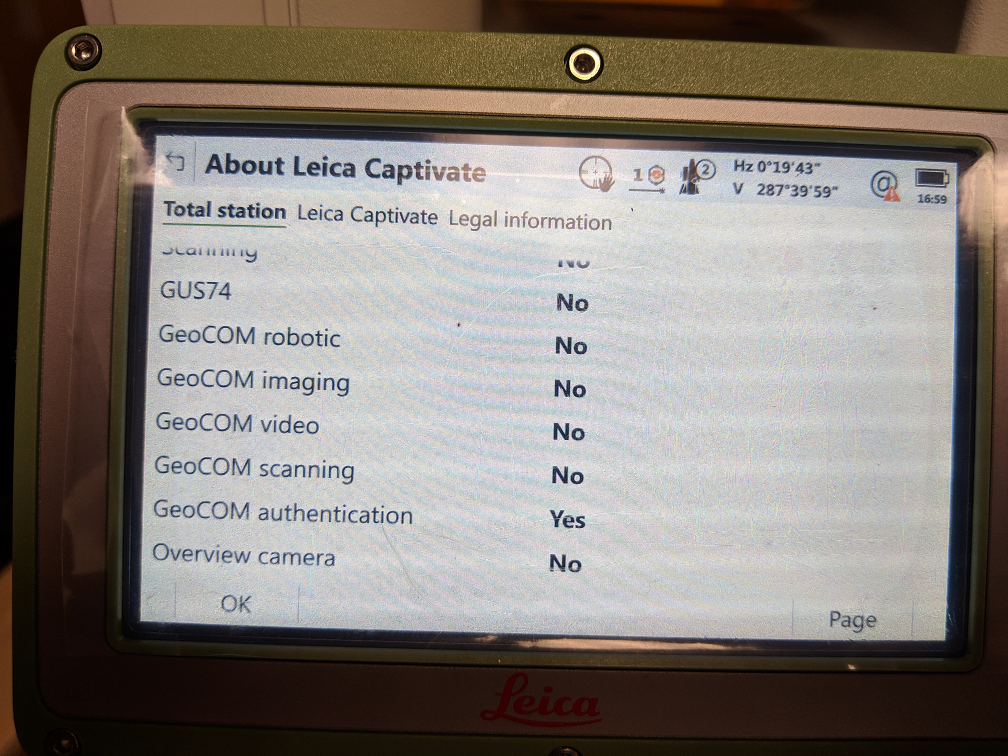 |
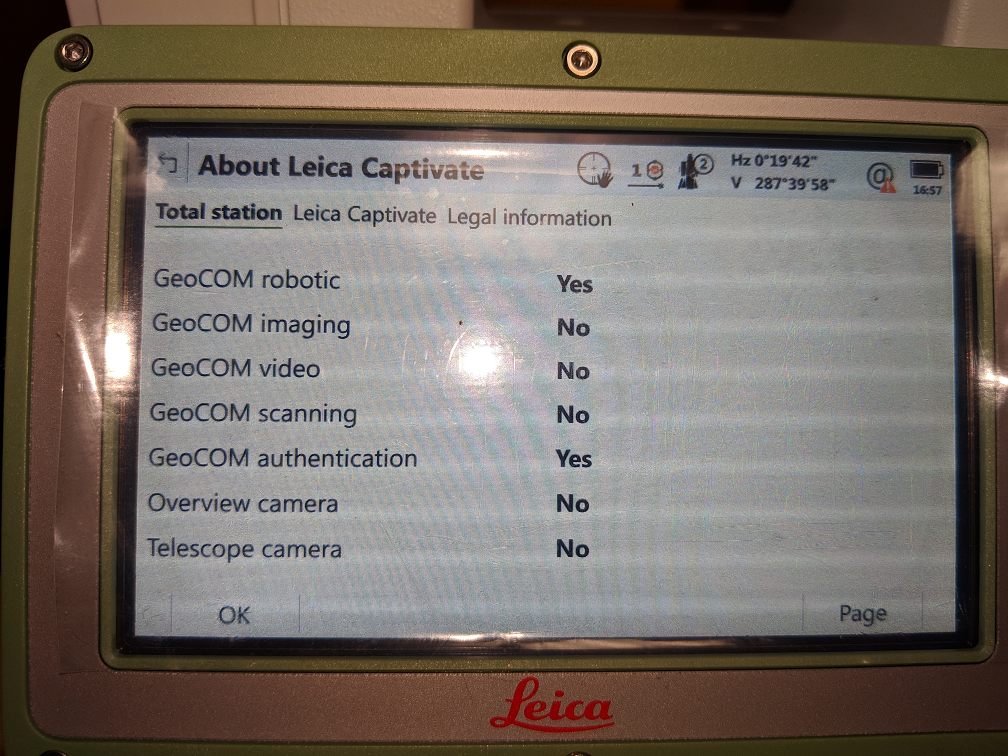 |
| This is what the TS13 looks like with the GeoCOM authentication before a connection Special Note: Prior to a connection only the "GeoCOM authentication" option is set to YES, After the connection is completed the GeoCOM robotic is now also set to YES. |
This is what the TS13 looks like with the GeoCOM authentication after connection Special Note: This TS13 does not have imaging, scanning or video functionality so therefore these options will not be applicable with this instrument. |
The article above should arm you with some diagnostic capabilities, but if in doubt, you or your dealer can contact the MicroSurvey support team via ticket or phone, we are very experienced in these matters.
James Johnston
Comments